Revisiting My Craft Content Organization

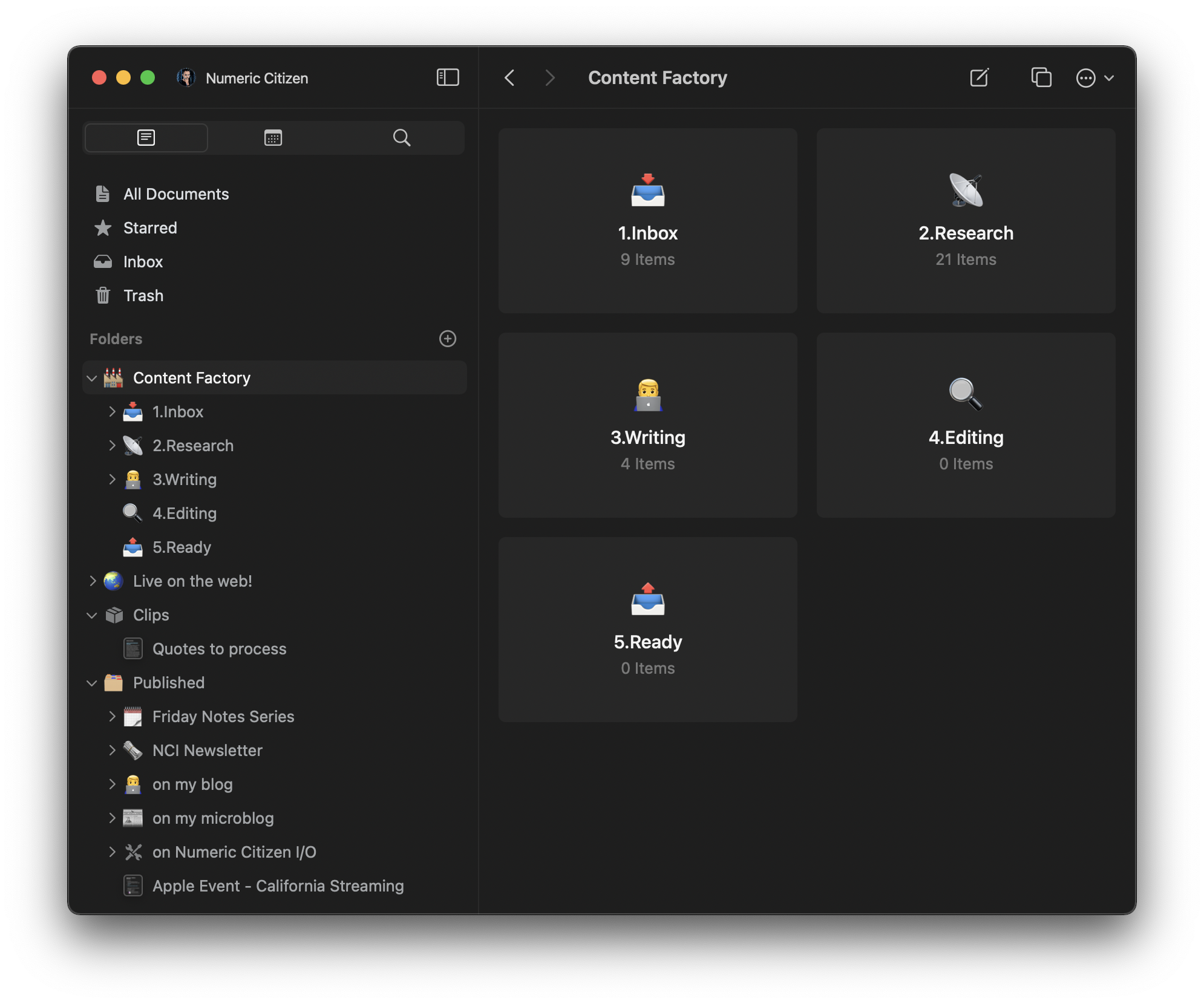
A digital note-taking or organization app interface shows folders and categorized items for managing tasks such as Inbox, Research, Writing, Editing, and Ready.

Even though I’m using Ulysses for most of my writings, after reading the “A Complete Ulysses Writing Workflow”, it gave me the idea of revisiting the way I organize my content in Craft. As shown in the previous screenshot, my content is now organized following a similar flow often seen on Kansan boards. As you might expect, everything start in the Inbox folder then eventually get “promoted” to the next folder, according to the content’s maturity. I like this a lot—it’s much cleaner than before. I should have known better, as I experienced the Kanban method a few years ago at work.

From ProRAW to JPEG — When JPEG is Simply Enough

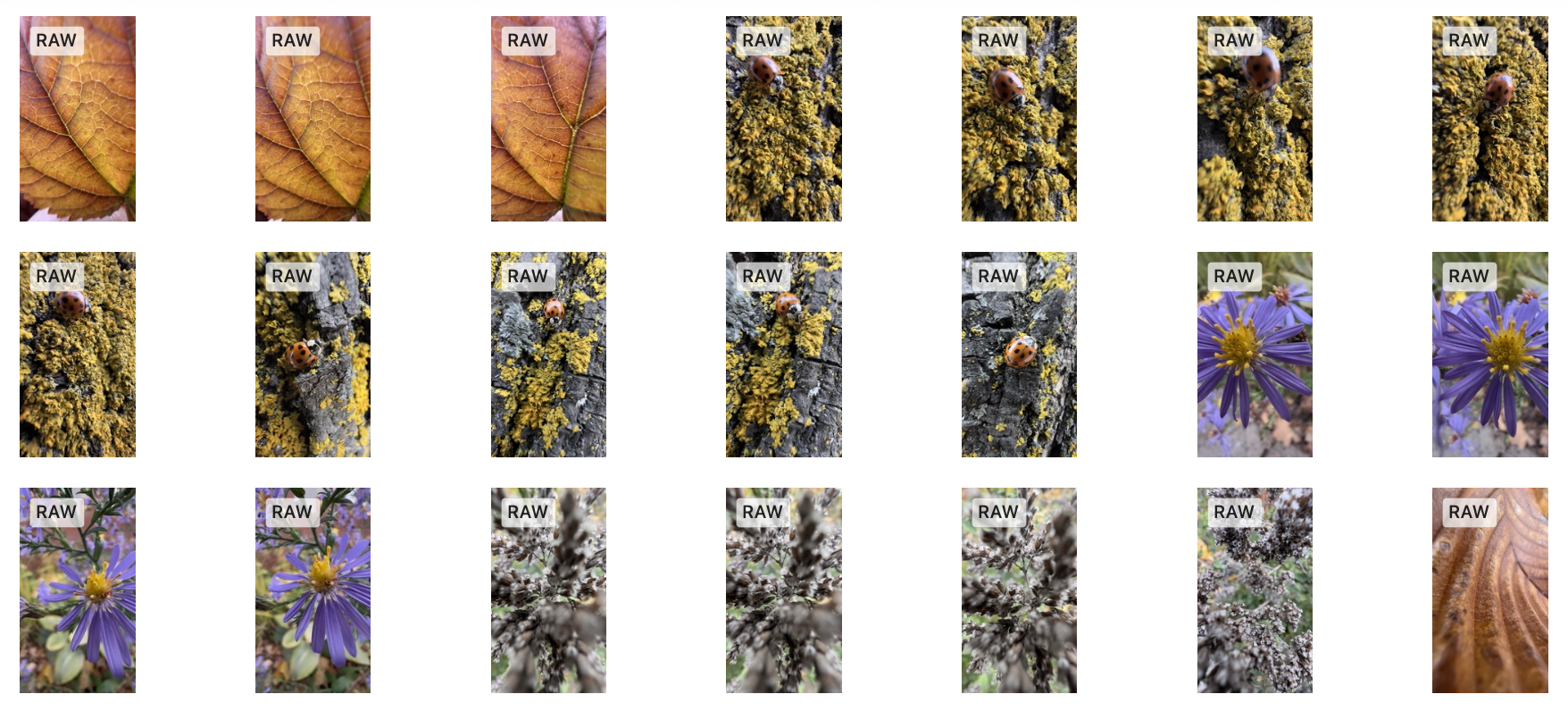
A sequence of close-up nature photographs shows a progression from a yellow leaf to mossy and leafy textures, ending with purple flowers and a dry leaf.

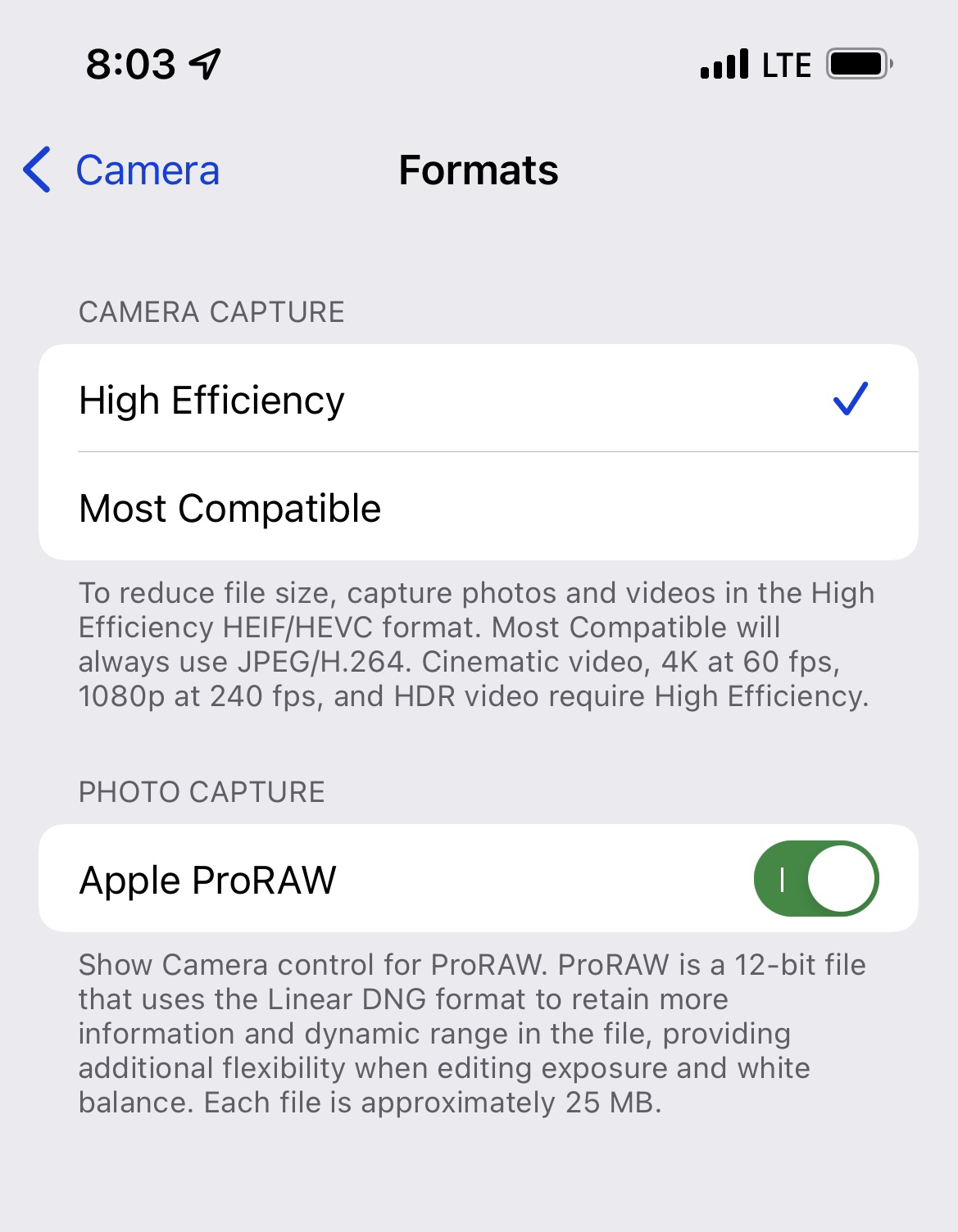
Here is a situation for which I’m searching for a solution. Let’s say I’m going out with my iPhone 13 Pro to take a few pictures outside. After a while, I notice that all the pictures that I was shooting were in ProRAW format. What if the lighting conditions were great that day and my photos didn’t require post-processing of any kind besides the iPhone’s own processing? How can I convert from ProRAW to their optimized JPEG counterparts and keep them in my iCloud Photo Library? Such process would decrease image size by a factor of ten.

I cannot find an answer for this seemingly easy question. So far, it all comes down to exporting the photos from Apple’s Photos application and then reimporting them. Such process needs to be followed by the deletion of all the original photos to prevent duplicates. There has to be a better way. Shortcuts, on iOS or macOS doesn’t provide any solutions as far as I can tell. Why is such thing not possible? If you happen to have a solution for this, please let me know.

Exposure Notifications — Still Useful?

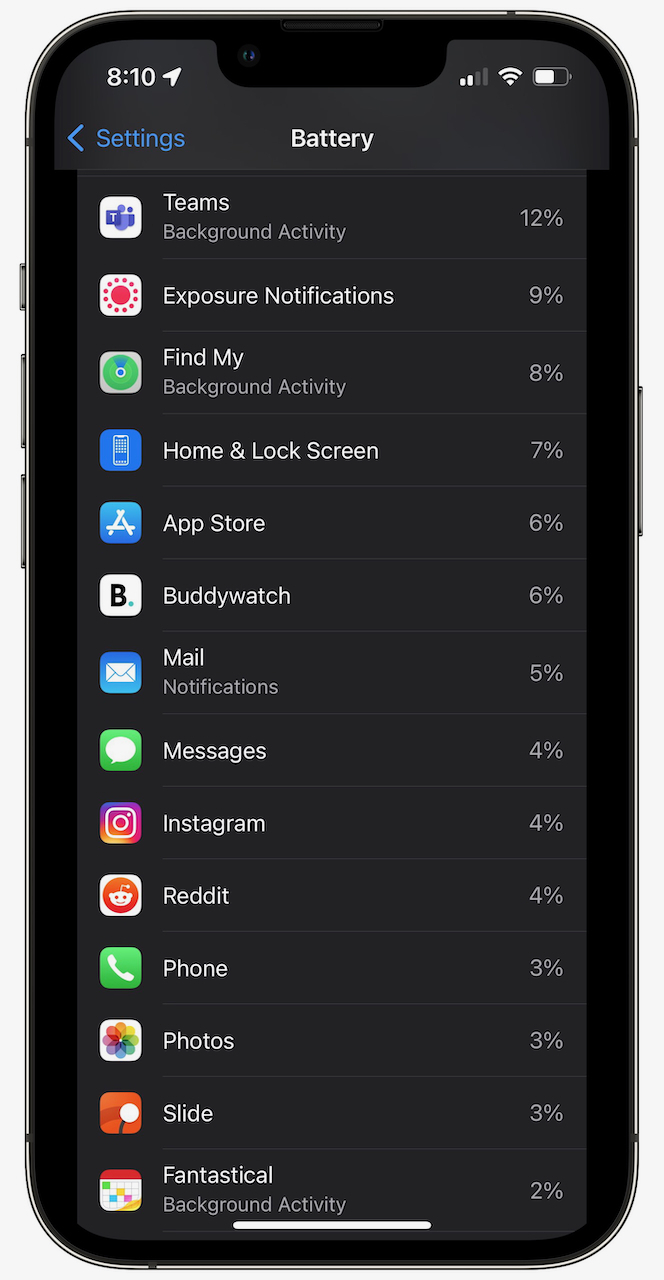
The other day I was looking at my iPhone battery consumption only to find out that the Exposure notifications feature was consuming close to 10% of the power on a 24 hours period. It’s not the first that I see Exposure Notifications to take so much juice out of my iPhone battery. I’m not alone, apparently, according to a Google search with the “exposure notifications battery drain” keywords.

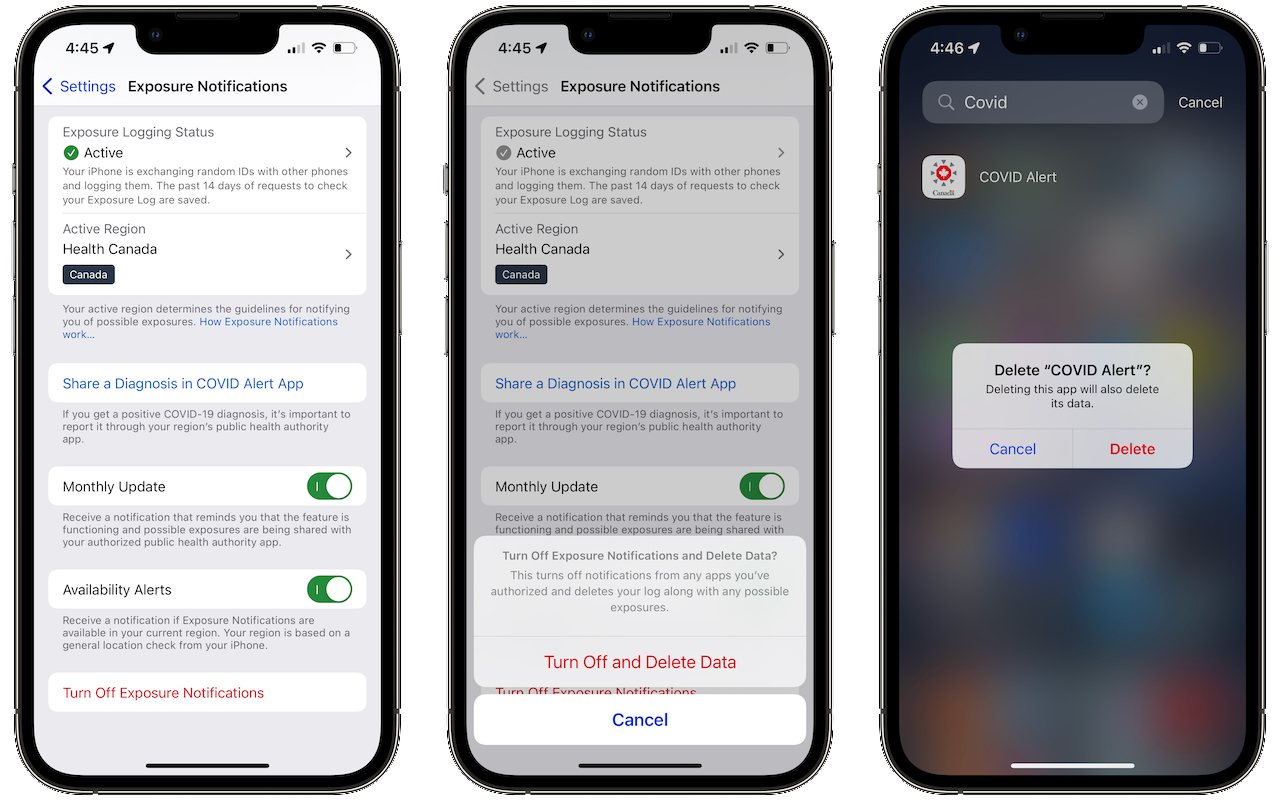
The question is simple: considering that I’m fully vaccinated, considering the state of the pandemic here in Canada, considering that hardly any people actually enter their test results if found positive, why should I continue to care about having this turned on? I think I could turn it off.

Remembering Macintosh Floppies

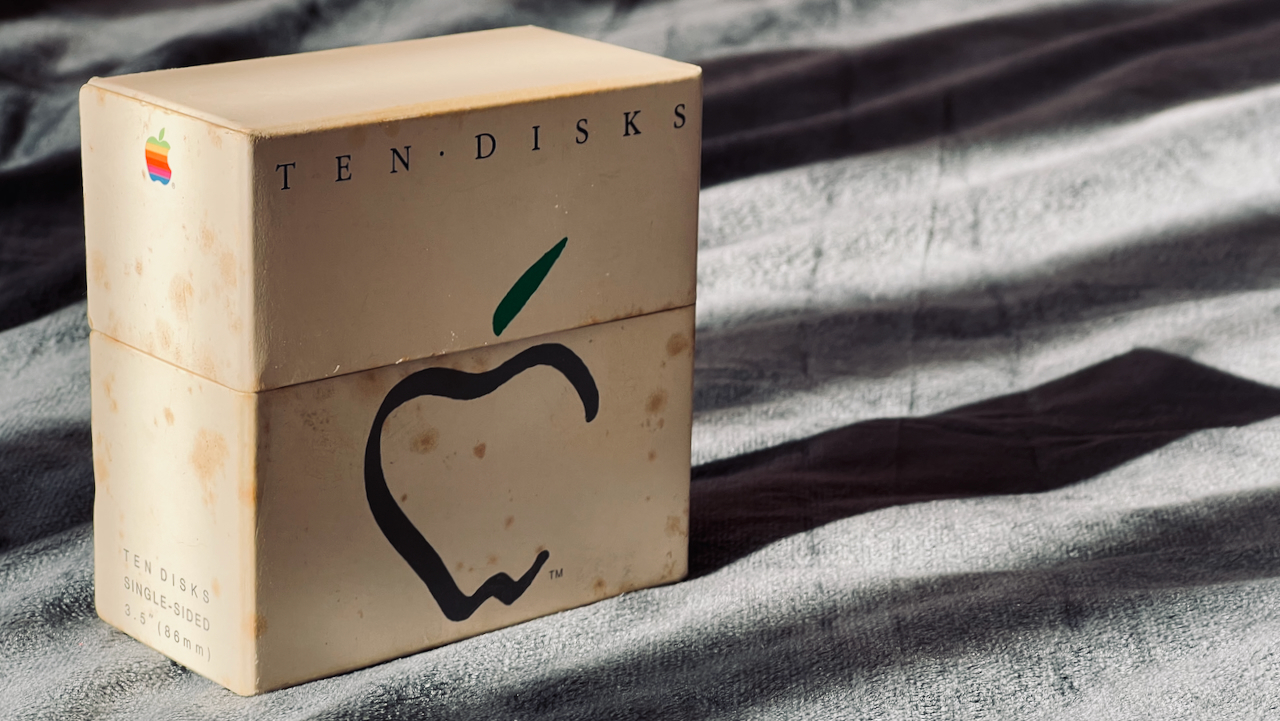
This seemingly insignificant box used to be sold by Apple and contained ten single-sided floppy disks. Those were meant to be used in a Macintosh computer. I had a bunch of them but somehow managed to keep an empty box. It was a great time.

Each floppy contained a whopping 400 KB of storage for a single-sided version. At one point we could get them for 70$ a piece. It was expansive compared to 5 1/4 inches flexible floppy disks that contained either 160 KB or 360 KB that were typically used in IBM PCs. From a design perspective, Apple’s floppy disks were rigid, smaller, sturdier and dust proof, hence a higher asking price.

Glass Profile Page — Finally?

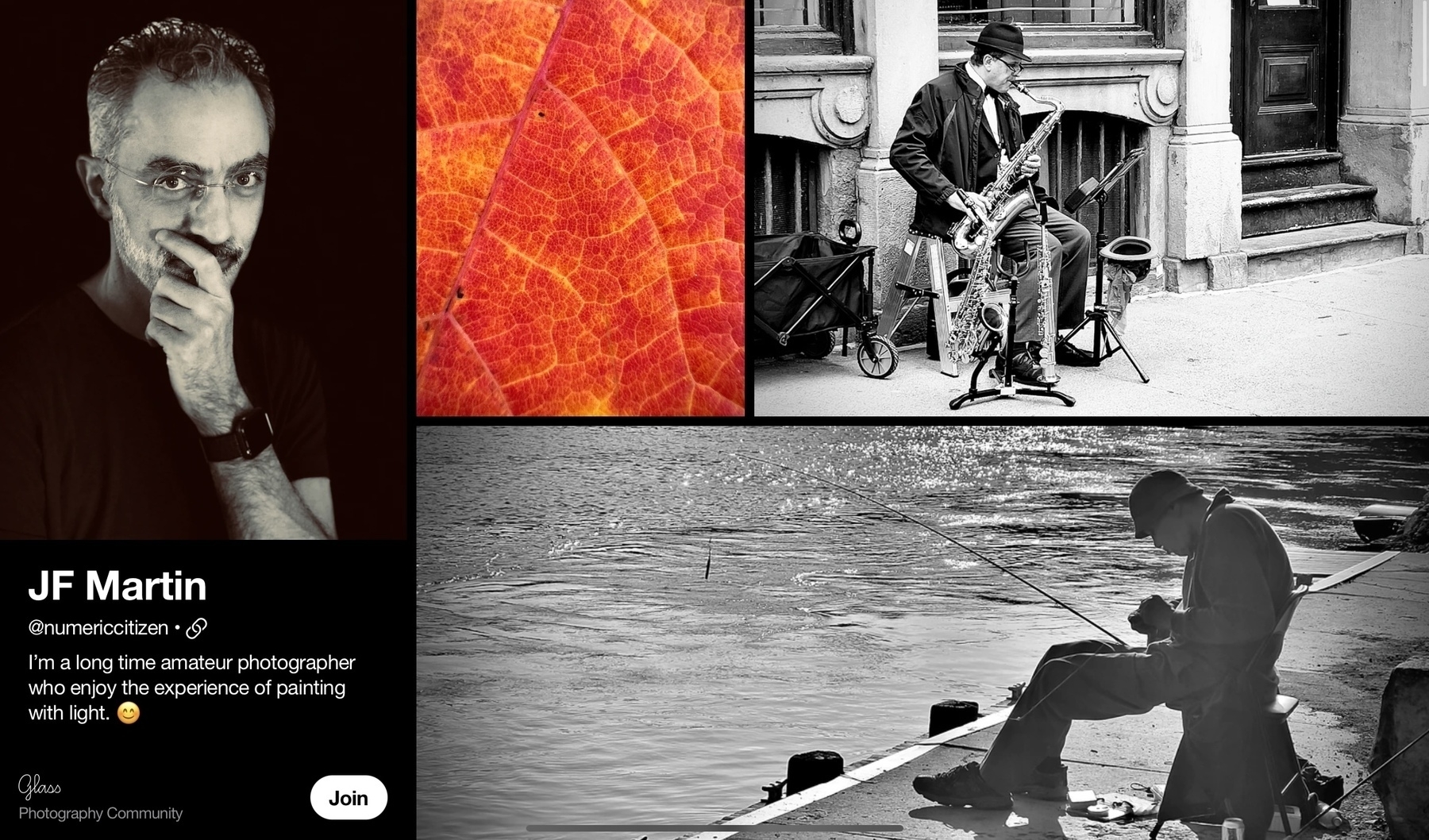
A photography profile showcases a thoughtful black-and-white portrait of JF Martin, a close-up of an autumn leaf, and two black-and-white street scenes featuring musicians and a fisherman.

After a successful initial launch, categories support addition, now here is profile page support. Glass is maturing, one step at a time. The web experience wasn’t part of the initial launch and I think it is fine. This is my profile page. Works great on iPhone, and on iPad which is cool. To join, you need to download the application. Works great on iPhone, not available on iPad. Oops. Next? Like support? I don’t think so. Hoping to meet you there!

Computational Photography Meet Traditional Cameras

But I wonder, where is photography headed from here? Surely, computational photography will play a big role in the short term. In my opinion, smartphones are not the future of photography, but they are hinting at where standalone, interchangeable lens cameras have to go in the next few years. I can’t wait to see what’s coming next. Source: Where is photography headed? — aows

What if Canon or Nikon were developing computational photography features in their cameras, just like Apple does for its iPhone? Imagine a “real” lens, a much bigger CCD captor, algorithms coupled with machine learning running on a powerful CPU. I wonder if this is the only way for Canon and Nikon to survive.

Understanding Halide Pro+ Capture Format

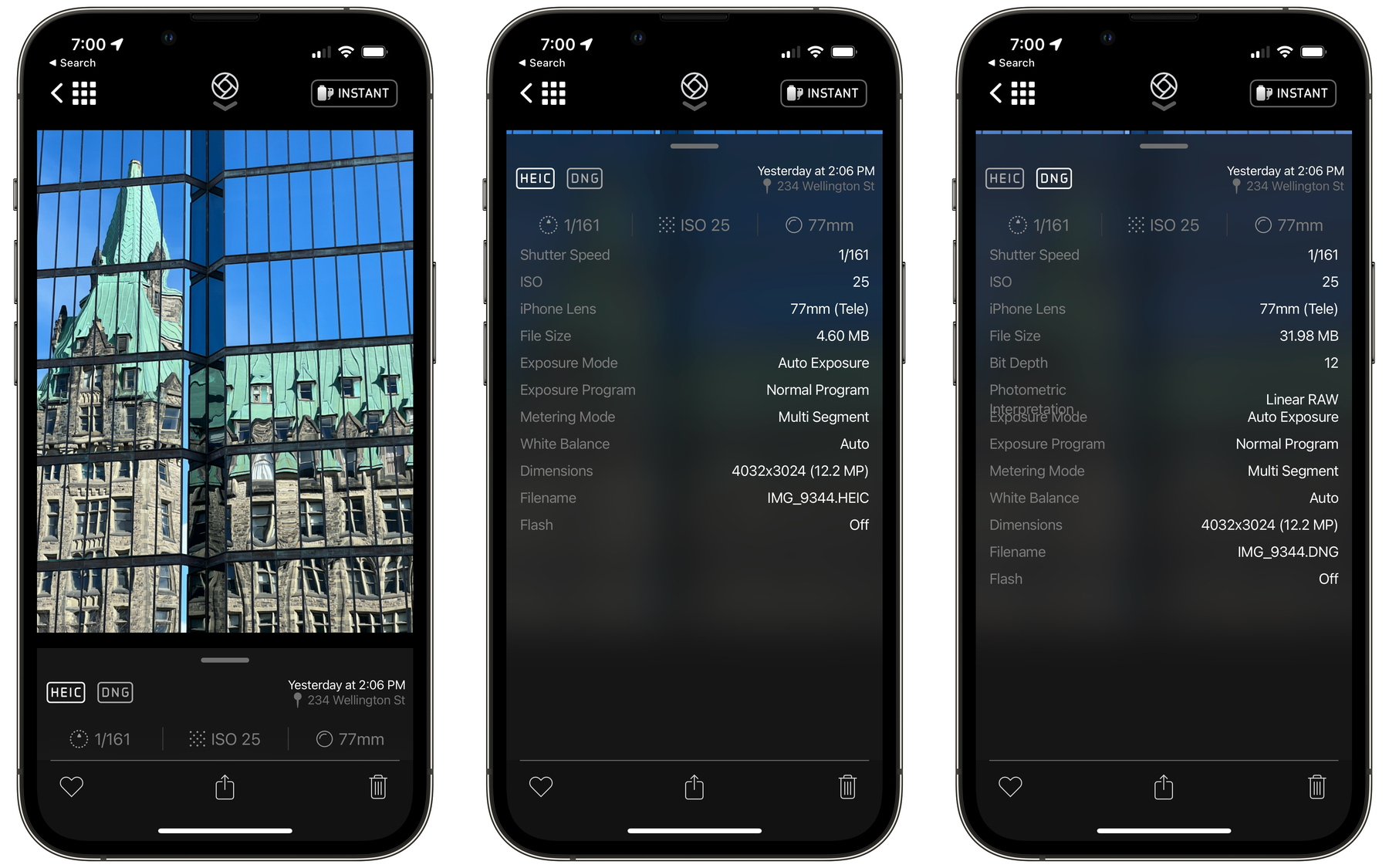
A photo of a building with a green roof is shown along with two detailed metadata screens displaying camera settings like shutter speed, ISO, exposure mode, and file size.

I’m still learning new things about shooting in ProRAW on my iPhone 13 Pro. The latest tidbits that I learned is not directly related to ProRAW usage, but to a setting in Halide related to photo capture modes.

When using what is called “Pro+” setting, Halide will take two photos for each shot. One is taken in HEIC format, the other is taken in ProRAW. Both photos are tied together and stored in Apple’s Photos library as one image. Here is the thing that I learned: when browsing previously taken photos from within Halide, metadata is shown in two different panels: HEIC and DNG (see above screenshots). Each component is taking a certain amount of space. The former being the smallest one. The latter, being the ProRAW version, is usually ten times bigger. But, when browsing the same photo in Photos, only the HEIC size is shown, as depicted in the following screenshot.
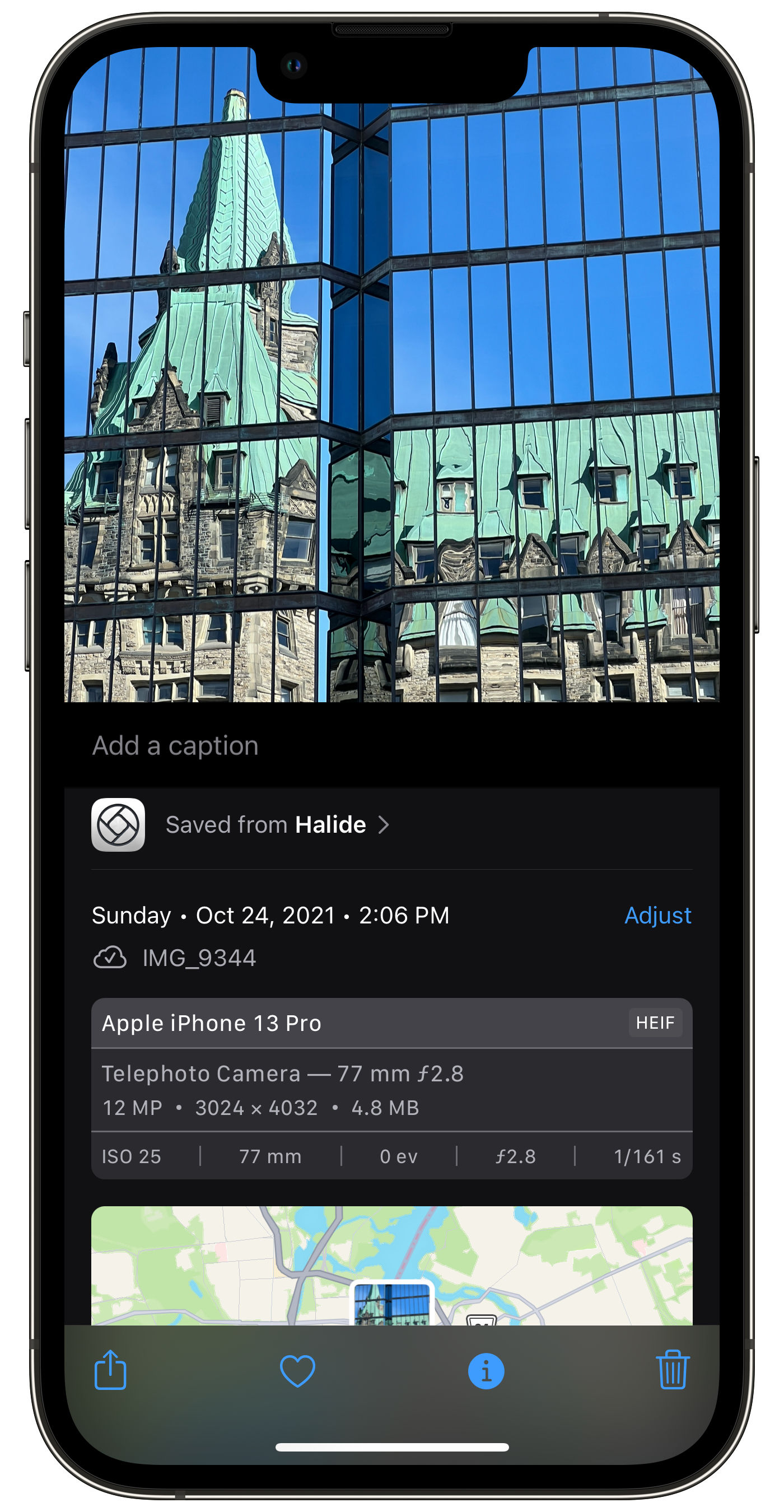
A historic building with green rooftops is reflected in the glass windows of a modern structure, captured on an iPhone 13 Pro screen.

In summary, for pictures taken with Halide’s Pro+ format, don’t be deceived by Apple’s Photos showing only the HEIC size. The actual space consumed by this image is actually the sum of the HEIC part + ProRAW part (in DNG). That’s big, for only one image. Is it worth it? It depends, as I recently wrote about this.